
Why Your Microsoft Teams Site Flopped—and How to Fix It
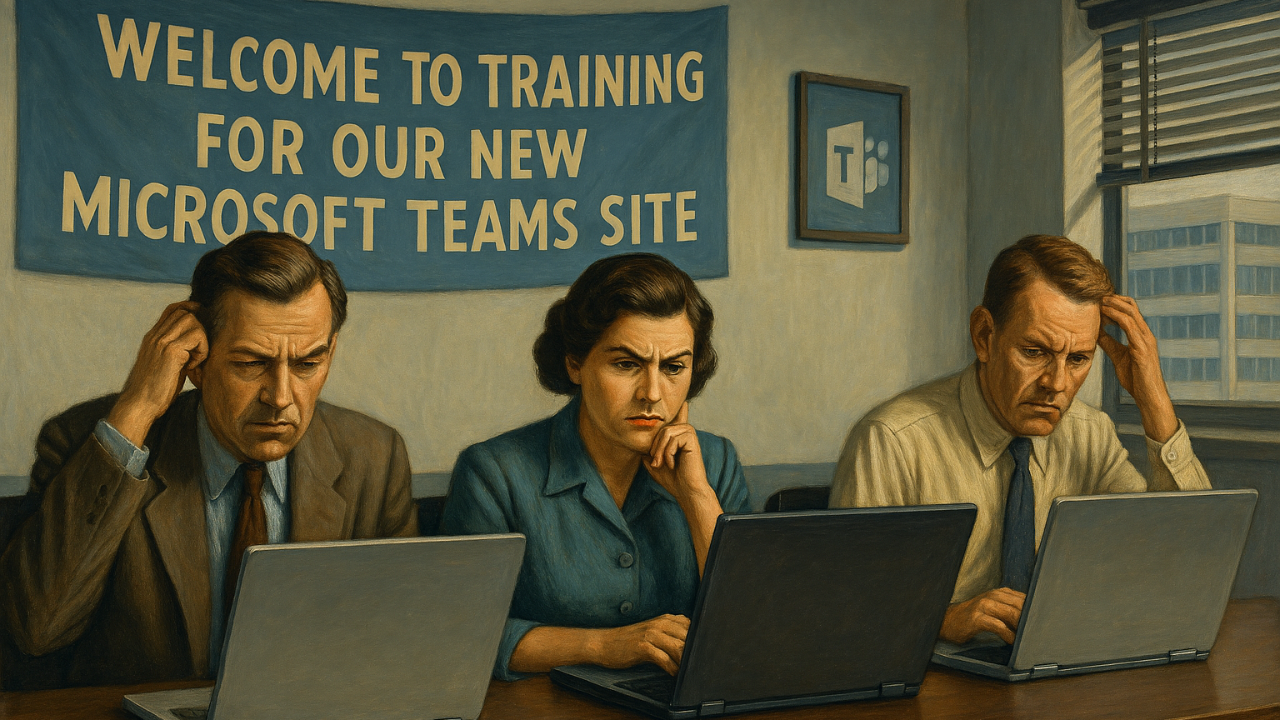
You launched your Microsoft Teams site with high hopes. It was supposed to streamline communication, organize files, and make collaboration effortless. But instead, it’s barely used, and it’s not saving anyone time. Sound familiar? You’re not alone.
The truth is, most Teams sites fail for one simple reason: they’re handed to employees “out of the box” without any customization. A default Teams site doesn’t guide users toward efficiency—it leaves them guessing. If you want your team to embrace Teams, you need to make it intuitive and ready for real work.
Why Default Teams Sites Don’t Work
When we review client environments, we see two common scenarios:
- One lonely channel: Most sites have only the default channel, often renamed but still serving no clear purpose. Everything gets dumped there, creating chaos.
- Random channels with no logic: These sites look like a messy shared drive, with channels named after vague topics or document folders. Employees don’t know where to go, and even great training won’t fix that.
The result? Frustration, wasted time, and poor adoption.
How to Customize Your Teams Site for Success
The fix is simple: customize your Teams site before anyone uses it. Here’s how:
1. Map Your Core Processes
Start by listing your team’s key workflows—onboarding, reporting, scheduling, customer support. Each process deserves its own channel. This prevents the “everything in General” disaster.
2. Name Channels Clearly
Skip clever names. Use descriptive titles like Marketing Campaign Planning or Client X Project. Clear names make navigation intuitive.
3. Add Tabs That Matter
Tabs turn channels into one-stop shops. Include:
- Files: Your SharePoint library for that process.
- Planner: Task tracking and deadlines.
- OneNote: Notes and reference material.
- Websites: Links to dashboards or external tools.
Done well, tabs keep employees in Teams instead of bouncing between apps.
4. Pin Key Channels
Pin frequently used channels so they’re always at the top. This saves time and keeps priorities visible.
5. Standardize Across Teams
If you manage multiple Teams sites, use a consistent structure. Same channel names for similar processes. Same tabs. Consistency reduces confusion and speeds adoption.
6. Integrate Apps
Bring in the tools your team already uses—CRM, project management, analytics dashboards. If it’s part of the workflow, make it accessible in Teams.
7. Keep It Clean
Audit regularly. Remove unused tabs. Archive old channels. A cluttered site is just as bad as an empty one.
The Payoff
When employees open a well-structured Teams site, they know exactly where to go. Files, apps, conversations, and tasks are all in one place. No more hunting through email or shared drives. Even your most reluctant team members will appreciate the simplicity.
Customize your Teams site and watch adoption soar and productivity climb.
Stay connected!
Join our mailing list to receive cutting edge content.
Don't worry, your information will not be shared.
Categories
All CategoriesThe Author

Arnie Howes
Arnie Howes has spent more than 25 years working with hundreds of organizations, using Microsoft collaborative technologies and Lean Office techniques to eliminate email overload and information chaos.
Receive cutting-edge content from the author!
